
Removing Clients
🔄 How to Archive a Client
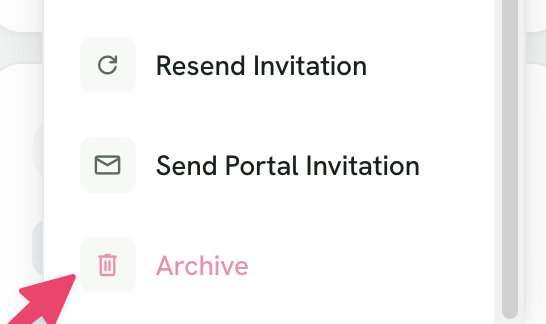
To archive a client:
- Go to your Clients page.
- Click the three dots (•••) next to the client's name.
- Select Archive.
✅ Archiving a client will:
- Disable their access to the mobile app & client web portal
- Keep their data available to you (you can still view their history)
- Still count towards your client limit ⚠️
🔓 How to Re-Activate an Archived Client
If you want a client to access the app again:
- Go to the Archived Clients tab
- Click the three dots (•••) next to their name
- Select Re-Activate
The client will instantly regain access to the mobile app.
🗑️ How to Delete a Client (Free Up a Spot)
To remove a client and free up one of your available spots:
- Go to Archived Clients
- Click the three dots (•••) next to the client
- Select Deactivate
🧠 Note: Deactivated clients and leads do not count toward your client limit. They can no longer sign in or submit forms.
Deactivating a client removes your access to their profile but does not permanently erase their data. You can still recover them later by selecting Reactivate.
To completely remove the client and permanently delete their data, select Permanently Delete.
How to Permanently Remove a Client
To permanently delete a client's account and data from our system:
- Ask the client to delete their account via the Foodzilla mobile app
- Or contact our support team via email to delete their account on their behalf
Need Help? 🤷♂️
Our support team is ready to assist with any questions or issues. Just click the "chat bubble" in the lower right-hand corner of your screen to get in touch! 💬