
How to Schedule a Chat Message for Later
Foodzilla lets you schedule chat messages to send automatically at a later time instead of sending them immediately.
You can also set messages to repeat on a schedule, making this useful for client reminders, habit prompts, follow ups, and regular check ins.
How to Schedule a Chat Message
- Go to the Messaging page.
- Open the chat with the client you want to message.
- Type your message.
- Click the clock icon next to the Send button.
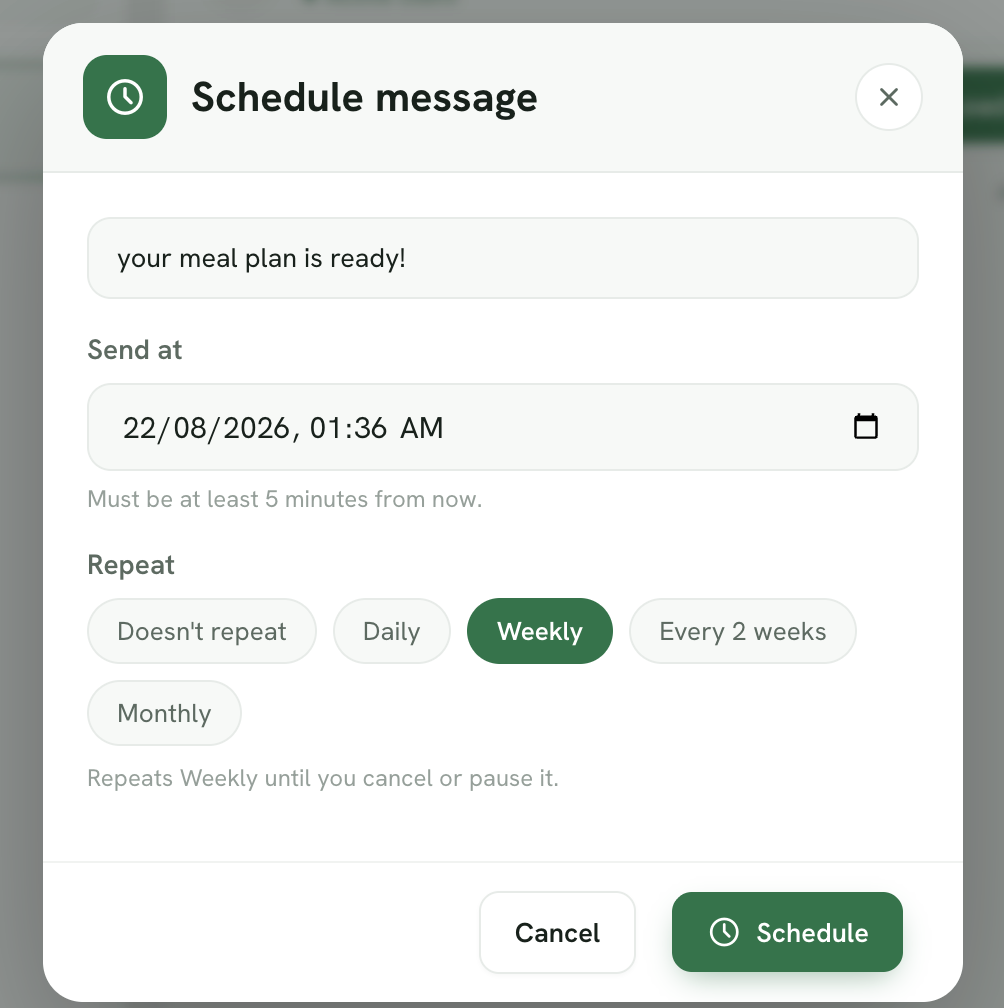
- Choose a send time at least 5 minutes in the future.
-
Select a Repeat option:
• Doesn’t repeat
• Daily
• Weekly
• Every 2 weeks
• Monthly
- Click Schedule.
Your scheduled message will appear in the Scheduled messages banner.
Edit, Pause, or Cancel a Scheduled Message
You can manage scheduled chat messages at any time:
• Click the pencil icon to edit the message, send time, or repeat schedule.
• Click the trash icon to cancel and remove the scheduled message.
• For repeating messages, click the pause/play icon to temporarily pause or resume the schedule.
Paused messages remain in your Scheduled messages list but will not be sent again until you resume them.
Ways to Use Scheduled Chat Messages
- Daily habit reminders
Schedule a message to repeat every day for habits such as water intake, steps, sleep, meal logging, or other client goals.
- Appointment reminders
Schedule a message for the morning of a consultation or coaching session.
- Weekly client check ins
Repeat a message weekly to ask how the meal plan is going or remind the client to complete a check in.
- Follow up messages
Schedule a one time message after a consultation so you do not need to remember to send it manually.
Scheduled chat messages make it easier to maintain consistent client communication while reducing repetitive admin work.