
How to Schedule a Form to Send Later
Foodzilla lets you schedule forms to send automatically at a later time instead of sending them immediately. This is useful for recurring client check ins, onboarding forms, progress reviews, and other follow ups you want to automate.
You can also choose whether the form should send once or repeat on a schedule.
How to Schedule a Form
- Go to Forms & Bookings.
- Find the form you want to schedule.
- Click Send.
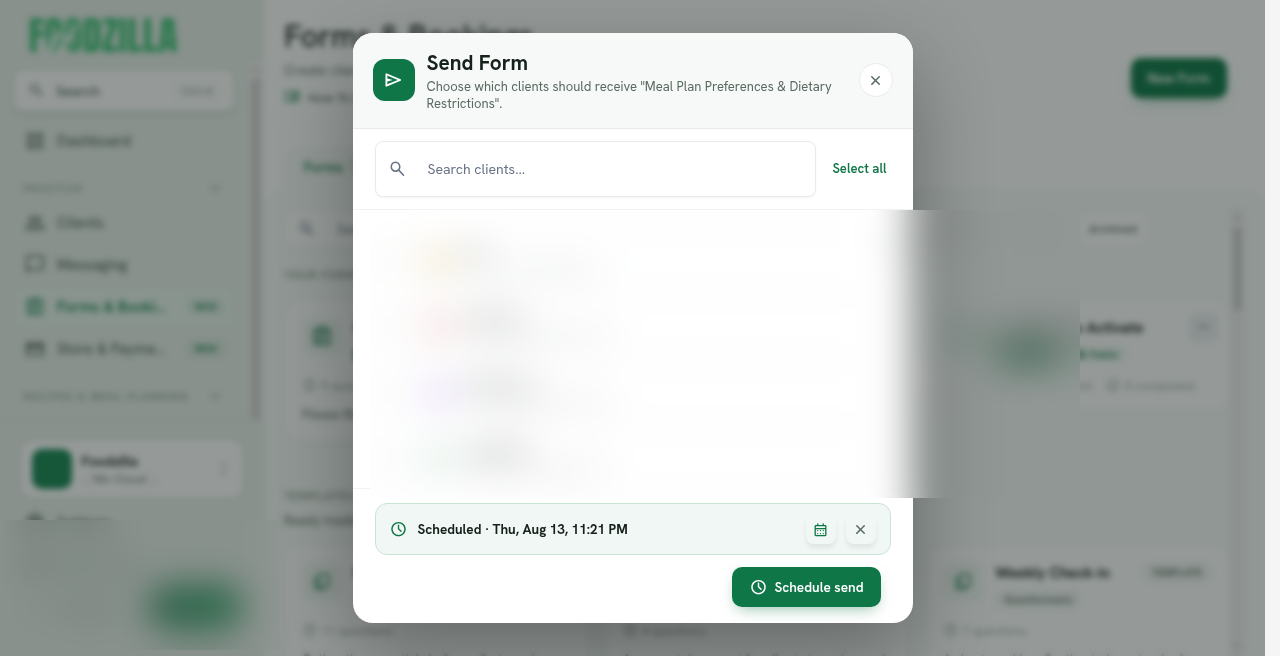
- In the Send Form window, click Send later in the footer.
- Select the clients who should receive the form.
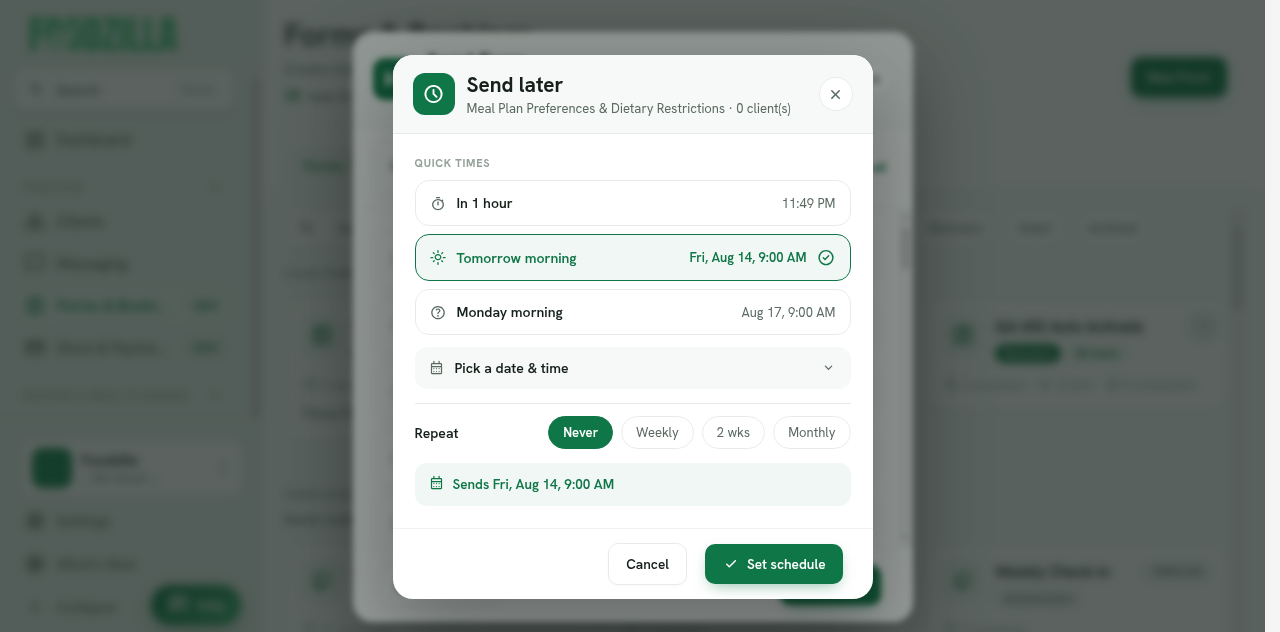
- Choose when you want the form to send.
You can use one of the quick options, such as:
• In 1 hour
• Tomorrow morning
• Monday morning
Each option shows the exact scheduled time. You can also select Pick a date and time to choose a specific date from the calendar.
Set a Recurring Form Schedule
You can choose how often the form should repeat:
• Never for a one time send
• Weekly
• Every 2 weeks
• Monthly
- Review the schedule summary, such as Sends Fri, Aug 14, 9:00 AM, then click Set schedule.
A green Scheduled row will appear showing the selected date and time. The send button will then change to Schedule send.
- Click Schedule send to confirm.
Edit or Cancel a Scheduled Form
After scheduling:
• Click the pencil icon on the Scheduled row to change the date, time, or recurrence.
• Click the trash icon to cancel the scheduled send.
Ways to Use Scheduled Forms
- Weekly client check in
Send the same check in form automatically every week on a set day.
- New client onboarding
Schedule an intake or welcome form to send the next morning after onboarding.
- Monthly progress review
Set the form to repeat monthly so clients receive a regular progress questionnaire without you having to send it manually each time.
Scheduling forms helps automate client follow ups and keeps your nutrition coaching workflow consistent without relying on manual reminders.