
How to Add Custom Measurements to Foods and Ingredients
Foodzilla’s Custom Measurements feature gives you complete control over how foods and ingredients are measured, displayed, and calculated.
Instead of using only grams, you can create practical serving measurements such as:
• 1 cup
• 1 tablespoon
• 1 scoop
• 1 piece
• 1 serving
• Any custom measurement name and quantity
These custom units can then be used in recipes, meal plans, and food logs by you, your team, and your clients.
How to Add a Custom Measurement
- Go to Food Databases
- Create a new food or open an existing food
- Select the Custom Measurements tab
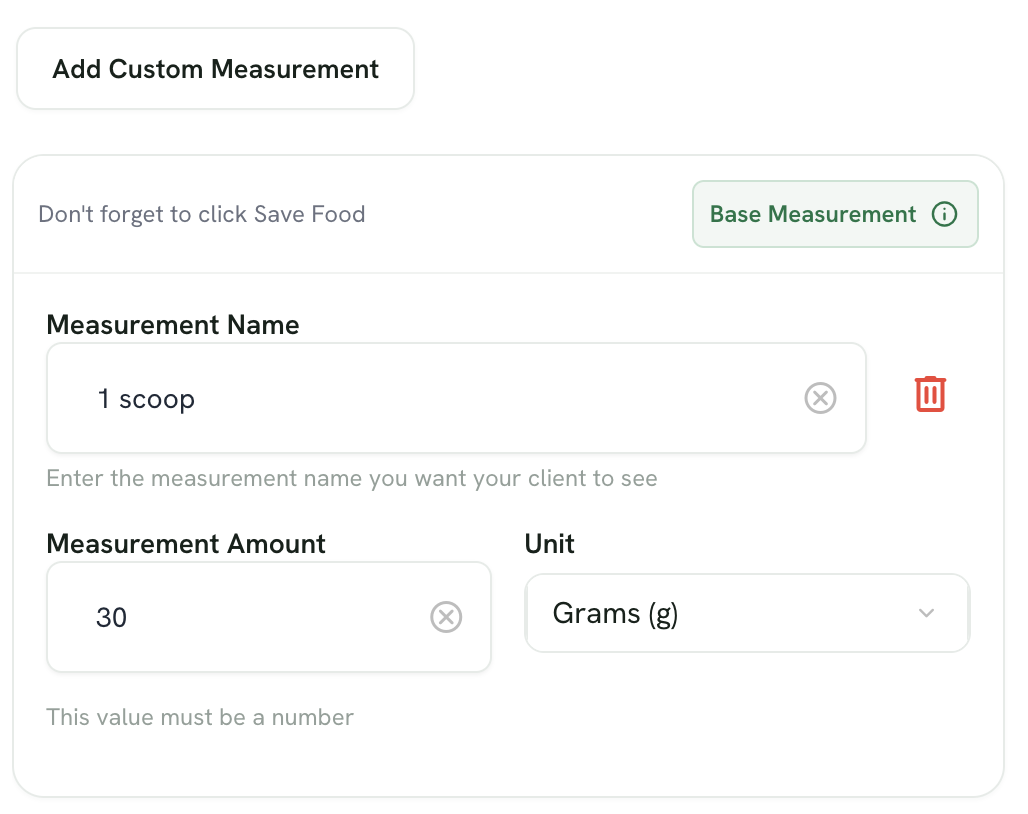
- Click Add Custom Measurement
- Enter the measurement name
- Enter the measurement amount
- Select the unit
- Click Save Food
Set the Base Measurement
The Base Measurement determines what the food’s nutrition values are based on.
By default, nutrition is calculated per 100 g. However, the first custom measurement you add can become the Base Measurement.
For example:
Measurement name: 1 scoop
Measurement amount: 30
Unit: Grams
In this example, the nutrition values entered for the food would represent one 30 g scoop rather than 100 g.
Edit or Delete a Custom Measurement
You can update an existing measurement by changing its name, amount, or unit.
To remove a measurement, click the trash icon, then click Save Food.
Why Use Custom Measurements?
Custom measurements make foods easier to use and understand, particularly for:
• Branded products
• Supplements and powders
• Packaged foods
• Foods commonly measured by cups, pieces, or servings
• Client food logging
• More accurate recipe and meal plan calculations
Always click Save Food after adding, editing, or deleting a measurement.